
Build an Email Triage Agent with n8n (2026 Guide)
A step-by-step build of the n8n agent that sorts my inbox: Gmail trigger, LLM classification, labels, reply drafts, and one morning digest. Prompts, settings, costs and mistakes included.
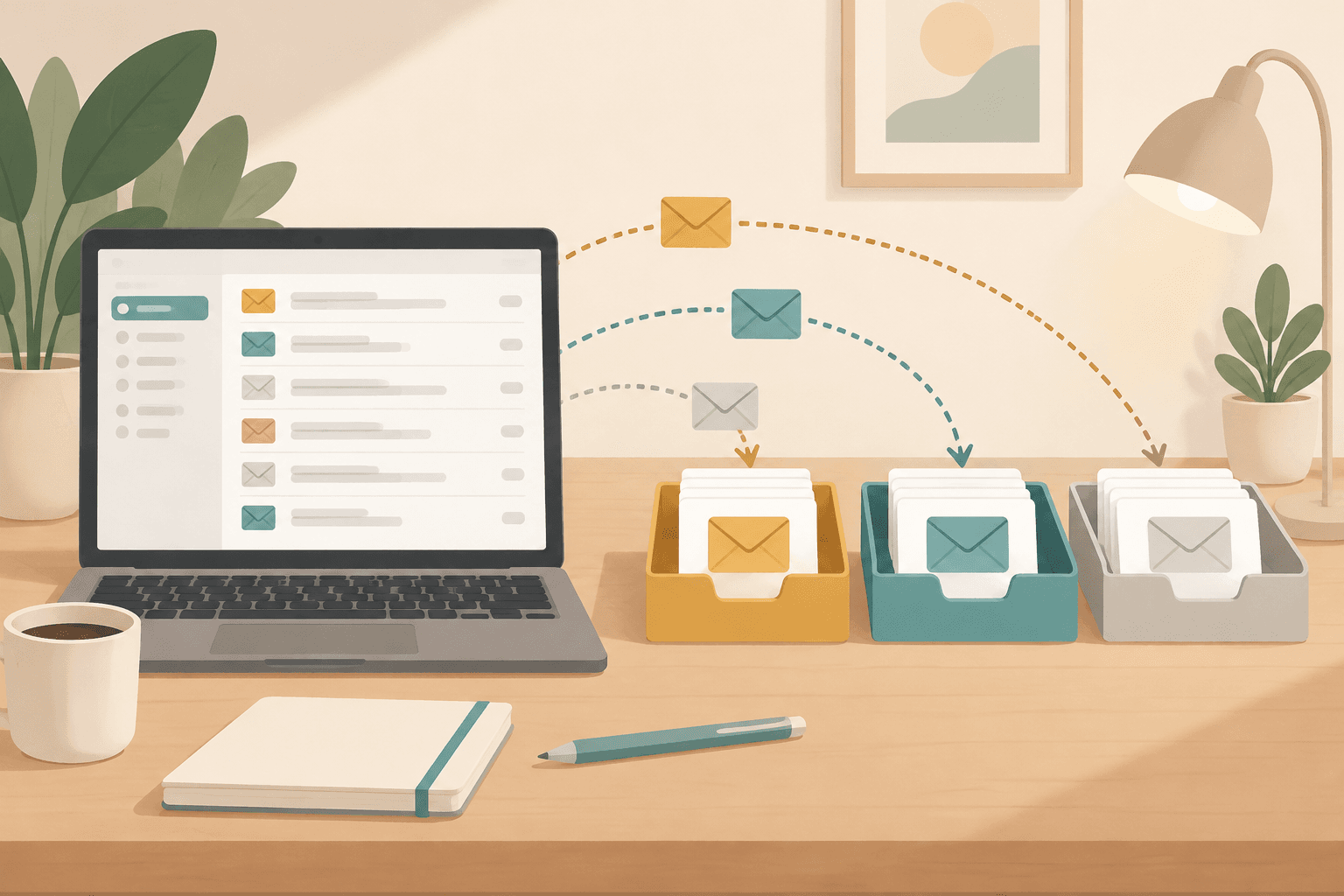
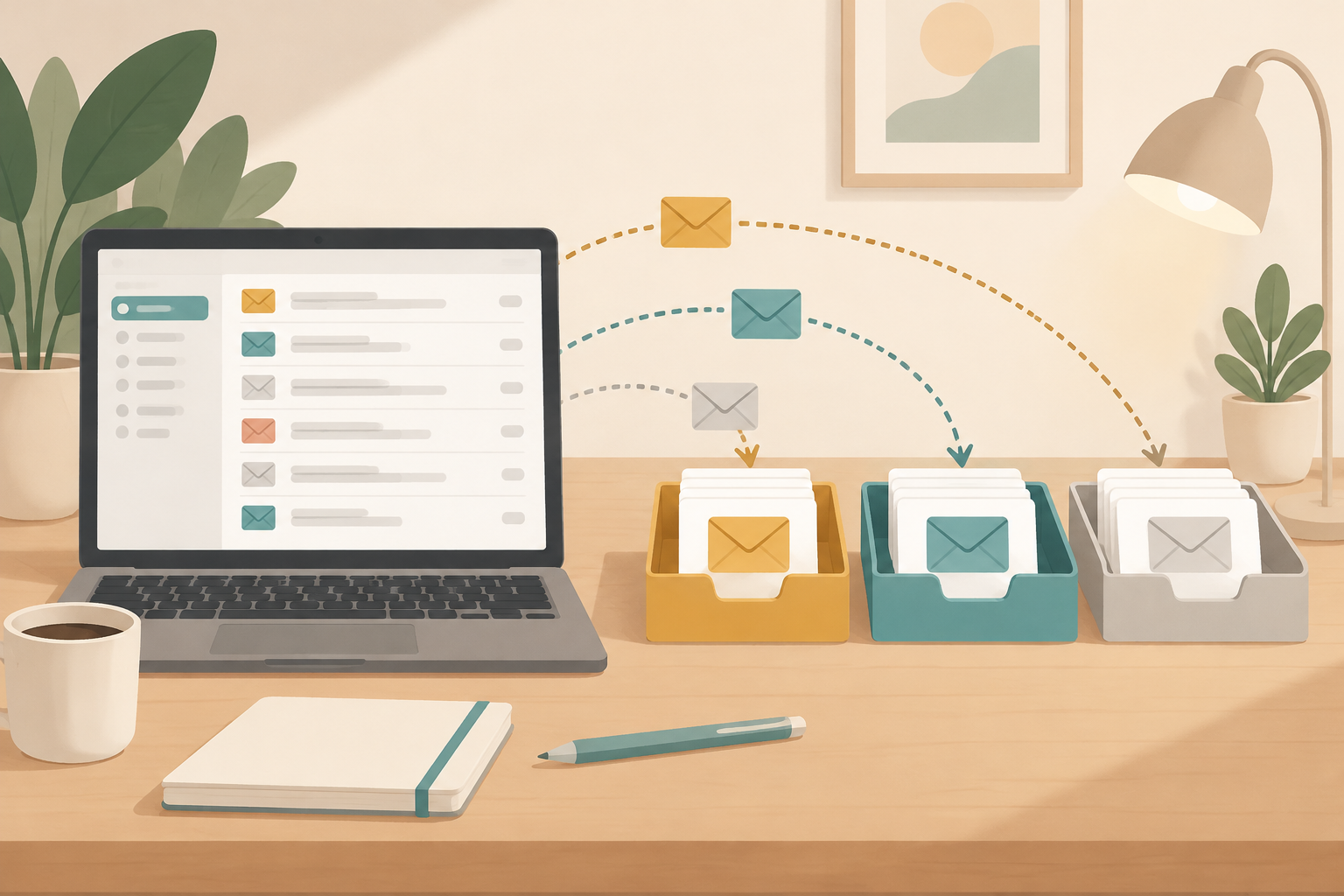
I treat my inbox like a queue that somebody else should sort. About sixty mails land in it on a normal day: client questions, invoices, newsletters I keep meaning to unsubscribe from, and the occasional message that actually needs a decision from me. Reading all of it is not hard work, but it is constant work, and it breaks my focus every hour.
So I built a small agent in n8n that reads every new mail, decides what kind it is, files it under the right label, drafts a reply for the routine ones, and sends me one short digest on Telegram each morning. It took an afternoon to build and it has been running for months. This guide is that build, step for step.
What the agent does
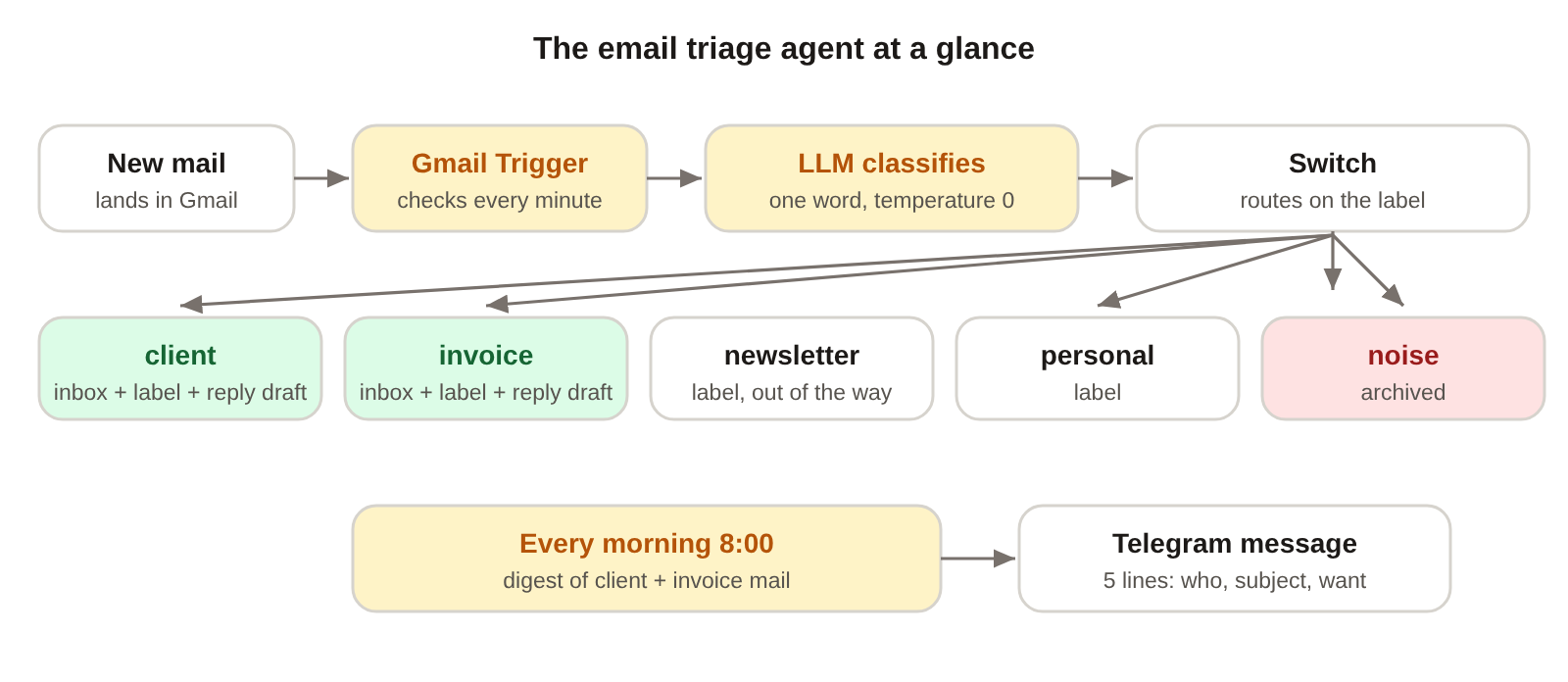
- Watches the inbox for new mail (Gmail Trigger, polls every minute).
- Asks an LLM to classify each mail: client, invoice, newsletter, personal, or noise.
- Applies the matching Gmail label and archives the noise.
- Drafts a reply for routine questions and leaves it in Drafts, never sends.
- Sends one Telegram message at 8:00 with everything that needs a human.
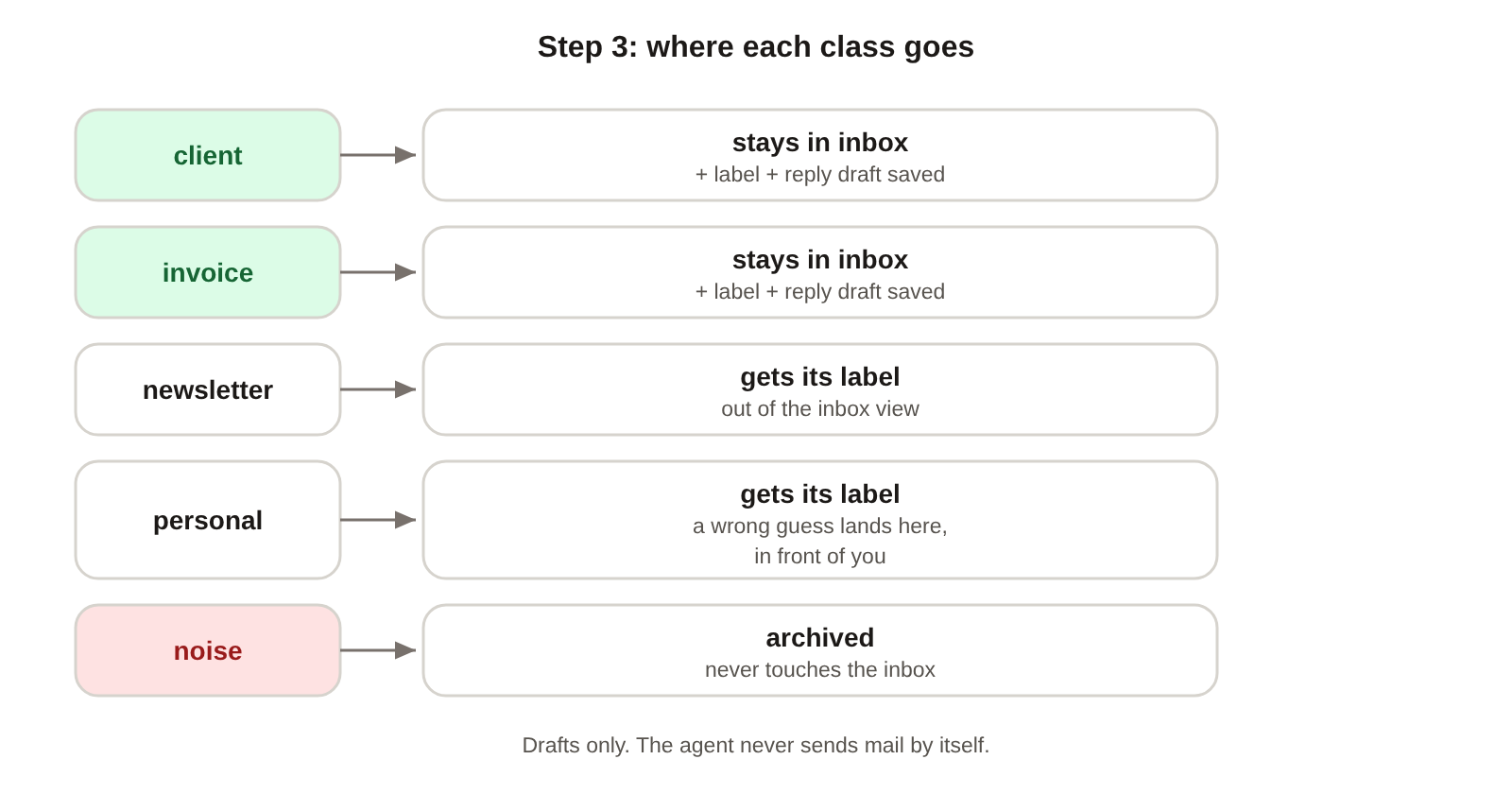
The agent never sends mail by itself. Drafts only. That one rule is what lets me trust it.
What you need
- An n8n instance, cloud or self-hosted. Version 1.x, anything recent.
- A Gmail account connected to n8n (OAuth, the usual consent screen).
- One LLM API key. I use a small cheap model for classification; the job is easy.
- Telegram, optional, for the digest. Email or Slack works too.
Budget about 30 to 45 minutes for the build, plus a week of watching it before you stop double-checking the labels.
Step 1: trigger on new mail
Add a Gmail Trigger node. Set it to fire on message received, and point it at your inbox only, not at every label. If you already filter some mail into folders with Gmail rules, leave those out of the trigger. The agent should only see what would otherwise land in front of you.
One setting matters here: download attachments. Turn it off. Attachments burn tokens and the classifier does not need them. Subject, sender and the first few hundred words of the body are enough.
Two more settings worth copying exactly. Poll Times: every minute is fine for a personal inbox; hourly is enough for a quiet one. And under Options, set Max Results to 50 so a busy morning does not flood a single run. Then use Fetch Test Event on one real mail before you build anything else, so every later node has real data to show you while you wire it up.
Step 2: classify with an LLM
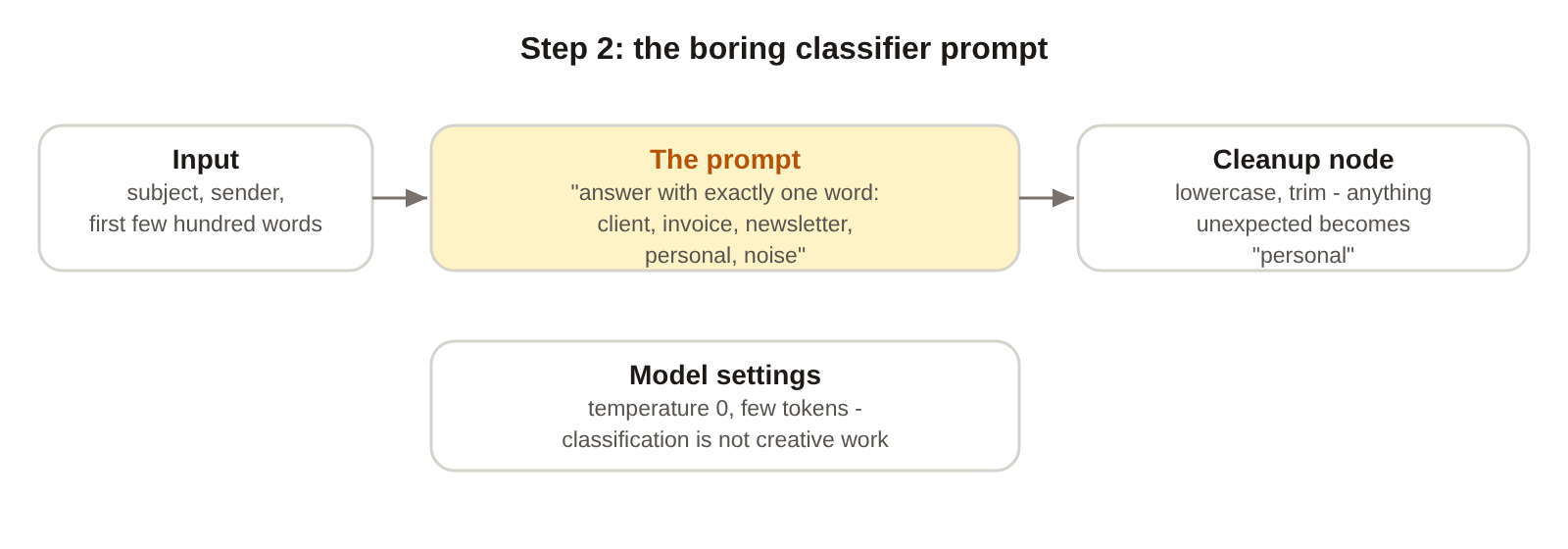
Next is an LLM node with a short, boring prompt. Boring is good. Mine says: read this email, answer with exactly one word from this list: client, invoice, newsletter, personal, noise. Then two or three examples of each. That is the whole prompt.
The full prompt, copied from my workflow: you sort email for a small consultancy. Read the email below and answer with exactly one word from this list: client, invoice, newsletter, personal, noise. A client writes about work we do for them. An invoice mentions payment. A newsletter is bulk mail. Personal is from a human who knows me. Noise is marketing and automated notifications. Answer with one word and nothing else. Short and plain, and it names each class so the model never has to guess what I mean.
Set the model temperature to zero and cap the answer at a few tokens. Classification is not creative work. In my logs the small model gets it right about nineteen times out of twenty, and the misses are almost always newsletters it calls personal, which is a cheap mistake.
After the LLM node, add a small Function or Set node that cleans the answer: lowercase, trim, and map anything unexpected to personal. You want a wrong answer to land in front of you, not in the archive.
The cleanup is one line of JavaScript: take the model answer, trim it, lowercase it, and if it is not one of the five words, return personal. A Set node with an expression does it, or a five-line Code node. This single line is what makes the whole agent safe to leave running.
Step 3: route the mail
A Switch node reads the cleaned label and fans out to five branches. Each branch is a Gmail node that adds the right label. Noise also gets archived. Client and invoice mails stay in the inbox untouched.
For the routine branches, add one more LLM node that drafts a reply, then a Gmail node that saves it as a draft on the same thread. Keep the drafting prompt narrow: answer in my name, three sentences, no promises, end with a question if anything is unclear. You will edit most drafts before sending, and that is fine. Editing a draft takes twenty seconds. Writing from scratch takes three minutes. That is where the time saving actually comes from.
The drafting prompt, copied too: answer this email in my name. Three sentences. Friendly and plain. Promise nothing about dates or prices. If anything is unclear, end with one question. The Gmail node that follows uses the draft operation with the thread ID from the trigger, so the draft lands on the original conversation where you will find it naturally.
Step 4: the morning digest
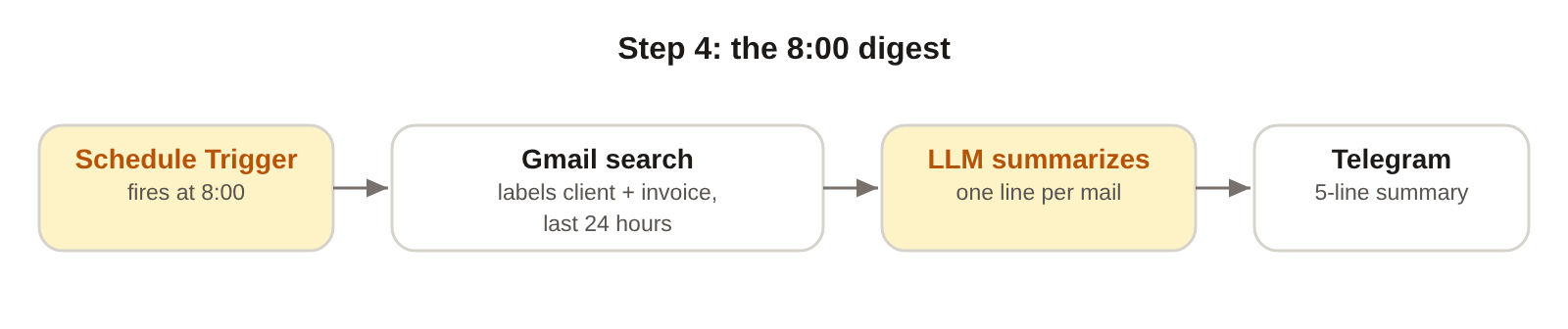
A Schedule Trigger fires at 8:00, a Gmail search node collects everything labeled client or invoice from the last 24 hours, and a Telegram node sends me a five-line summary: sender, subject, and one line of what they want, per mail.
The search uses the normal Gmail query language: the label, plus newer than one day. In practice I run two search nodes, one per label, and merge the results, because OR queries inside the node are fiddly. The Telegram message is plain text, one mail per line. No formatting tricks needed.
This is the part I did not expect to love. I read the digest with coffee and I already know my morning. The inbox is optional before noon.
What it costs
At sixty mails a day, classification with a small model costs me a few cents a day, so single-digit dollars per month, based on the model prices I saw in November 2026. n8n itself is free if you self-host it. The drafting step costs more than classification because replies are longer, so if you watch your spend, start with classification only and add drafting later.
Drafting roughly triples the token spend compared to classification alone, because a reply is far longer than one word. Still cents, not dollars, at this volume. The cost that actually matters is your own attention: the digest is what buys that back.
The workflow, node by node
- Gmail Trigger: new mail in the inbox, polled every minute.
- LLM node: the classification prompt, temperature 0.
- Set or Code node: clean the answer, fallback to personal.
- Switch: five rules, one per label.
- Gmail node per branch: add the matching label.
- Gmail node on the noise branch: archive the thread.
- LLM node on the client and invoice branches: draft the reply.
- Gmail node: save the draft on the same thread.
- Schedule Trigger: every day at 8:00.
- Two Gmail search nodes: client mail and invoice mail from the last 24 hours.
- LLM node: one summary line per mail.
- Telegram node: send the digest.
Twelve nodes, and no custom code beyond the one cleanup line. If you have built anything in n8n before, this is an afternoon. If this is your first workflow, plan a weekend morning and go slowly through the Gmail connection part, because Google OAuth consent is the only genuinely annoying step.
One thing worth doing the same day you finish the build: your workflows are now part of how you work, so protect them. I automate my n8n backups to Dropbox so a broken instance never means rebuilding from memory.
Mistakes I made, so you skip them
- Letting the agent auto-send. I tried it for one day and spent the day worrying. Drafts only.
- Classifying with a big expensive model. The small one is fine; the task is easy.
- No fallback for weird LLM answers. One hallucinated label word and a client mail went to the archive. Add the cleanup step from day one.
- Checking every decision for a month. Give it a week, spot-check, then let it run.
Once workflows like this run daily, errors need somewhere to go. I log n8n errors to Monday.com so a silent failure never eats a client mail.
Where to go from here
Once triage runs, the natural next build is the meeting-scheduler agent: it reads the client mails the triage flags, checks your calendar, and drafts a reply with three open slots. Same pattern, one more tool. I will publish that build next.
If you like this pattern of watching a source and mailing yourself what matters, the same idea powers my event scraper that emails new listings.
If you build this, start with classification and labels only. Live with it for a week. Then add drafting. Then the digest. Each step is an hour at most, and each one earns its keep on its own.
Share this content:
Related articles in Technology

Automate n8n Backups to Dropbox (2026)
Mastering Your Digital Fortune: The Power of n8n workflow backup automation 2026 In the volatile worlds of crypto markets and stock investing, where fortunes can shift in an instant, proactive risk management isn’t just a good idea – it’s your digital lifeline. As we hurtle towards 2026, the reliance on sophisticated automation tools like n8n

n8n Error Logging to Monday.com Guide 2026
Future-Proofing Your Workflows: Mastering n8n error logging to Monday.com 2026 In the fast-evolving landscape of digital operations, where AI agents blur the lines between automation and autonomy, proactive error management isn’t just a best practice – it’s a survival strategy. We’re talking about more than just keeping the lights on; we’re talking about maintaining the

TRC20 Wallet Tracking with n8n (2026 Guide)
Master Your Crypto Holdings: Unleashing TRC20 Wallet Tracker n8n Automation 2026 The world of crypto moves at an unprecedented pace. Keeping tabs on your investments, especially across various networks, can feel like a full-time job. For anyone dealing with USDT on the Tron network, manual checking is not only time-consuming but also prone to oversight.
Get new Blogtechi articles by email.
Get the latest insights on AI, automation, and future tech delivered to your inbox. You confirm your address first and can unsubscribe at any time.
By subscribing, you agree to our Privacy Policy and Terms of Service.